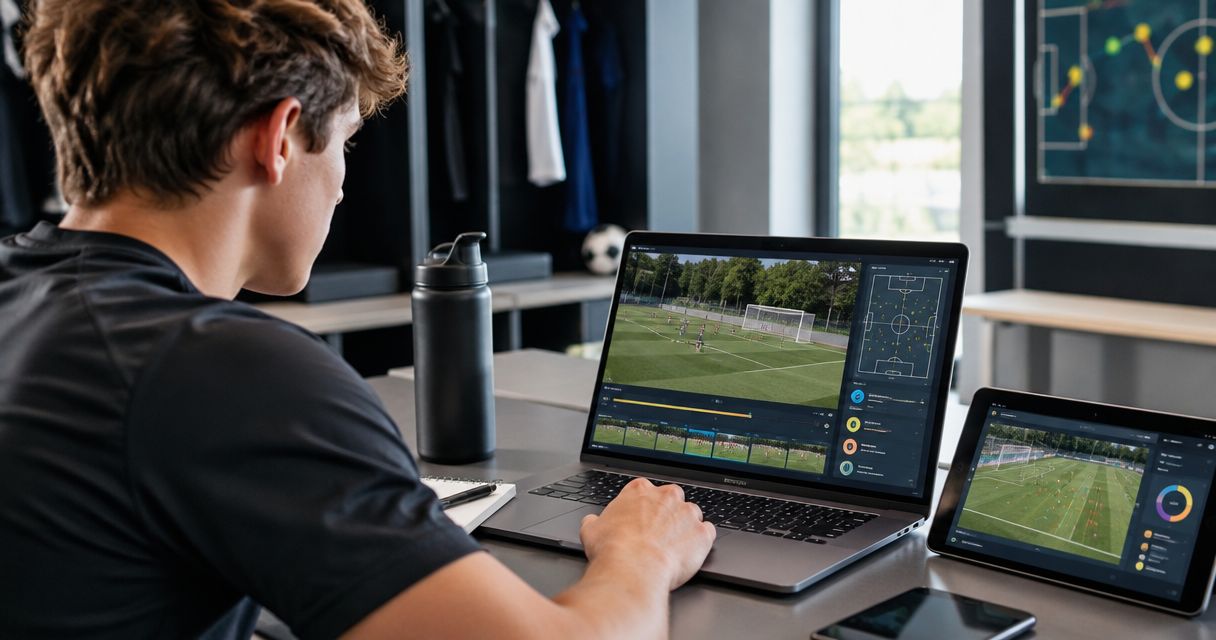
Best overall: DaVinci Resolve. Best for Apple-device editing: iMovie. Best for a straightforward Windows workflow: Clipchamp. Best for an open-source desktop workflow: Shotcut. These alternatives to Hudl suit student-athletes who need to turn existing game footage into a highlight video in 2026; choose by device, editing needs, and how you will share the finished reel.
- DaVinci Resolve leads these alternatives to hudl for detailed highlight-video editing; expect a steeper learning curve.
- iMovie suits Apple-device editing; Clipchamp suits straightforward Windows highlight-video projects.
- Shotcut suits athletes who want an open-source desktop editor across major operating systems.
- RecruitMyGame fits recruiting profiles and coach-fit research alongside a finished highlight video, not as an interchangeable editing recommendation.
Why this matters
A video editor and a recruiting platform solve different problems. An editor helps you select plays, trim footage, identify yourself, and export a watchable file. A recruiting platform helps organize the athlete information and outreach surrounding that video.
RecruitMyGame helps US high school student-athletes build profiles, access roster and coach-fit insights from Tosch.ai, and connect with college coaches across 20+ sports. RecruitMyGame is best for student-athletes who need a recruiting profile and coach-fit context alongside their highlight video.
For your 2026 shortlist, start with the actual gap. If you already have game footage and only need to edit it, compare the editors below. If you need access to footage, team analysis, or a recruiting destination, an editing app alone does not address the whole task.
What makes the best alternatives to Hudl?
Judge a highlight-video editor against these criteria before choosing a familiar name:
- Footage compatibility: Your actual game recordings must import and play correctly. Test the files from your camera or team before building a project.
- Editing control: You need accurate trimming, clip ordering, readable titles, and a way to identify the athlete without hiding the play.
- Device fit: Choose software that works on the computer or phone you will actually use, not the device you hope to borrow.
- Repeatable workflow: Updating an existing project should be easier than rebuilding the reel whenever you add a better play.
- Usable export: The finished video should preserve the detail needed to follow the athlete and the action.
- Clear handoff: Editing ends with a file. Hosting, access permissions, athlete profiles, and coach outreach remain separate decisions.
Do not choose an editor because it has the longest feature list. Choose the one that lets you finish a clear, accurate reel and update it without losing your source footage.
Hudl alternatives at a glance
| Editor | Best for | Standout feature | Key limitation |
|---|---|---|---|
| DaVinci Resolve | Detailed editing and mixed-footage projects | Editing, color, and audio tools in one application | A more demanding interface and workflow |
| iMovie | Student-athletes editing on Apple devices | A focused timeline with titles and transitions | Not a Windows or Android editing option |
| Clipchamp | Straightforward Windows highlight projects | Accessible trimming, titles, and clip assembly | Less suited to detailed finishing work than Resolve |
| Shotcut | Open-source desktop editing | Cross-platform timeline editing and filters | Requires more manual setup than a guided workflow |
These are editing alternatives, not identical replacements for every Hudl function. In 2026, compare them around the highlight-video task rather than assuming each includes team video access, sports tagging, recruiting profiles, or coach communication.
1. DaVinci Resolve: best Hudl alternative for detailed editing
DaVinci Resolve combines video editing, color correction, audio work, and visual effects in a desktop application. You can assemble plays on a timeline, adjust framing, add identification text, and refine the finished sequence without moving the project between separate editing tools.
Its strongest use case is a reel assembled from inconsistent footage. Different cameras, lighting conditions, and audio tracks create more work than simple trimming; Resolve provides controls for addressing those differences.
DaVinci Resolve pros:
- Precise timeline tools support close control over where each play begins and ends.
- Color controls help you adjust clips with different exposure or color balance.
- Audio tools let you manage distracting sound without rebuilding the video elsewhere.
- A saved project supports later revisions as your footage changes.
DaVinci Resolve cons:
- The interface takes longer to learn than a basic clip assembler.
- Playback and export performance depend on your computer, footage format, and project settings.
- Advanced tools add complexity when you only need cuts and a title.
Best for: Athletes or families who want detailed control and have time to learn a desktop editing workflow.
Start with a complete sample project before committing your season's footage. Import a representative game clip, trim a play, add an athlete identifier, and export it. That small trial checks the workflow that matters instead of relying on a feature checklist.
Verdict: Buy into DaVinci Resolve if editing control matters more than getting through the simplest possible interface.
2. iMovie: best Hudl alternative for Apple-device editing
iMovie provides video editing on Mac, iPhone, and iPad. It covers the core highlight tasks: selecting footage, trimming clips, arranging plays, adding titles, and producing a finished video.
For a student-athlete already using Apple devices, the appeal is a focused workflow. You can spend your attention on which plays belong in the reel rather than learning a larger post-production application.
iMovie pros:
- Core trimming and sequencing tools suit a straightforward highlight reel.
- Built-in titles help introduce the athlete and separate sections.
- Apple-device support gives you a choice between mobile and desktop editing.
- A narrower toolset keeps basic projects focused on the footage.
iMovie cons:
- Athletes using Windows or Android need a different editor.
- Detailed color, audio, and effects work has fewer controls than Resolve.
- Moving a project between devices requires attention to media transfer and project compatibility.
Best for: Apple users who want to assemble a clear reel without taking on a full post-production workflow.
Use titles sparingly. An opening card can identify you, but repeated graphics across live action make the footage harder to assess. When the viewer needs to locate you, place the identifier before the play develops and leave the important action visible.
Verdict: Buy into iMovie when your existing Apple device and a simple timeline cover the job.
3. Clipchamp: best Hudl alternative for straightforward Windows editing
Clipchamp provides a visual timeline for combining video clips, trimming footage, adding text, and exporting a finished project. Its Windows and browser-based workflows make it a practical candidate for athletes who want to assemble a reel without learning a detailed finishing application.
Clipchamp fits projects where the footage is already usable and the main task is selection. You choose the strongest sequences, remove unnecessary lead-in, add clear identification, and review the export.
Clipchamp pros:
- A visual timeline makes the order of your plays easy to review.
- Text tools support athlete identification and opening information.
- Basic assembly does not require learning specialized color or audio workspaces.
- A Windows-oriented workflow suits families already editing on that system.
Clipchamp cons:
- Browser-based editing introduces browser and device requirements that you should check with your footage.
- Detailed finishing needs can outgrow a straightforward assembly workflow.
- A finished export still needs a separate sharing destination and appropriate viewing permissions.
Best for: Windows users whose main need is trimming, ordering, and labeling existing footage.
Before building the full reel, test your longest source recording and a representative clip from every camera you plan to use. A short phone recording alone does not establish that the editor will handle your full game files comfortably.
Verdict: Buy into Clipchamp for a direct Windows highlight workflow; skip it when detailed finishing is the main requirement.
4. Shotcut: best Hudl alternative for open-source desktop editing
Shotcut is an open-source video editor for Windows, macOS, and Linux. Its timeline, filters, and export controls support highlight assembly without tying the editing workflow to a single operating-system family.
Shotcut suits athletes who prefer a conventional desktop application and want control over the project. You still need to organize your footage, choose project settings, and check the final export yourself.
Shotcut pros:
- Cross-platform support suits households using different desktop operating systems.
- Timeline editing supports trimming and sequencing individual plays.
- Filters provide options for text, framing, and visual adjustments.
- Export controls let you work deliberately with the finished video's format.
Shotcut cons:
- The interface requires learning rather than guiding you through a sports-specific process.
- Project and export settings need attention from the editor.
- Recruiting profiles and coach outreach remain separate from the editing task.
Best for: Athletes who specifically want an open-source desktop editor and accept a more manual workflow.
Keep the original recordings separate from your editing project. A project file contains editing instructions and references to media; it is not a substitute for retaining the source footage.
Verdict: Buy into Shotcut when open-source desktop editing is a requirement, not merely another feature on the list.
Build the reel before adding more tools
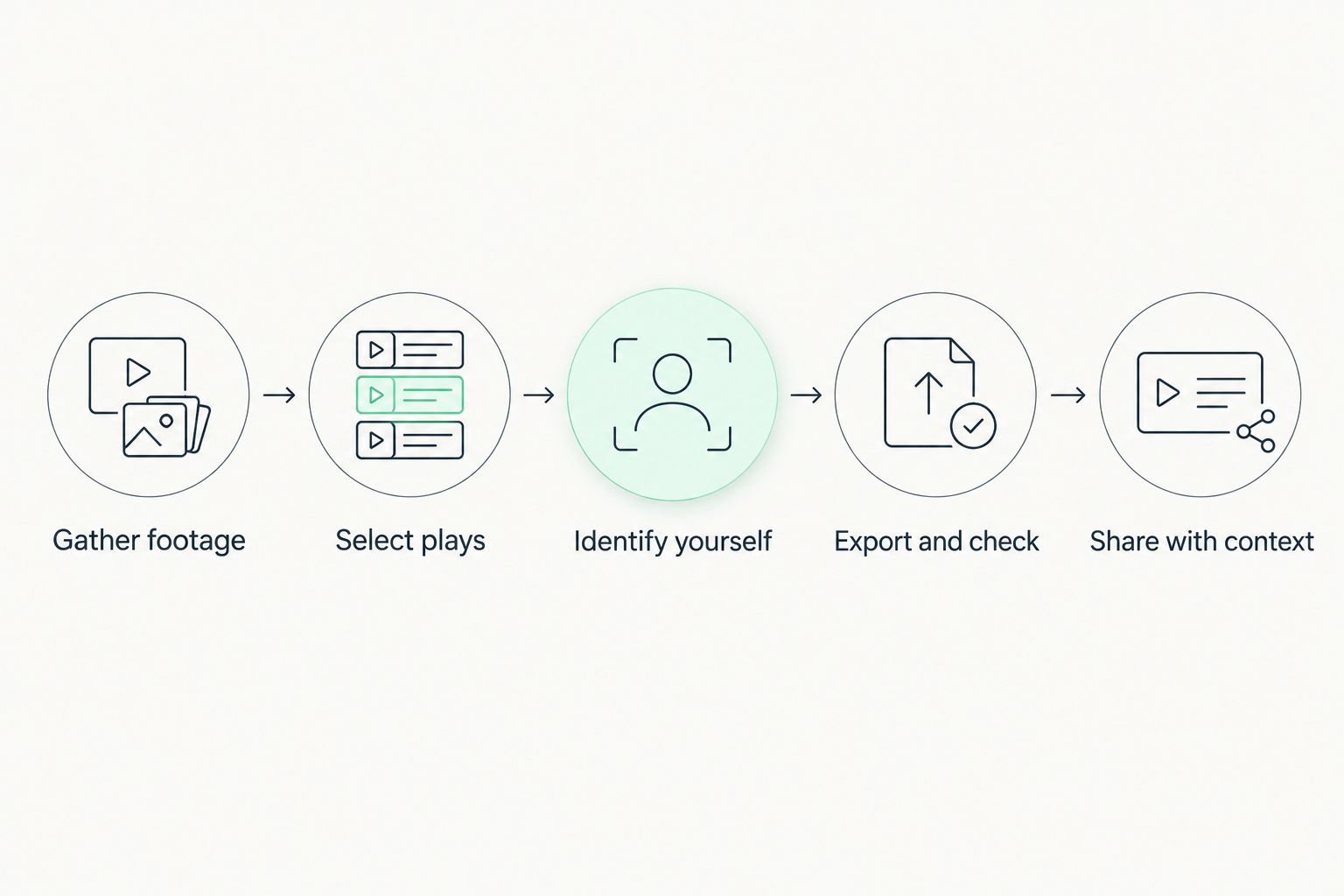
For a 2026 highlight-video workflow, use this sequence regardless of the editor you choose. It separates footage decisions from software decisions and gives you a repeatable way to update the reel.
- Gather footage: Collect original recordings and confirm that you have permission to use and share them.
- Select plays: Keep sequences that demonstrate the qualities relevant to your sport and position. Preserve enough context to understand the action.
- Identify yourself: Make your location clear before the important movement starts. Avoid graphics that cover the evidence a coach needs to see.
- Export and check: Watch the exported file, not only the editing preview. Check text, framing, playback, and whether the play remains understandable.
- Share with context: Pair the finished video with accurate athlete information and a clear reason for contacting the program.
For standard full-HD output, 1920 × 1080 pixels uses a 16:9 aspect ratio. Match the export to the source footage and its intended viewing context; enlarging a low-detail recording does not restore missing detail.
RecruitMyGame belongs at the recruiting-context stage: profiles, roster and coach-fit insights from Tosch.ai, and connections with college coaches. Those functions complement the video rather than determine which editor handles your footage best.
How the editors rank
The 2026 ranking prioritizes editing control, device fit, repeatability, and the handoff to sharing. DaVinci Resolve takes the default position because it covers detailed editing and finishing in one application; iMovie, Clipchamp, and Shotcut each serve a distinct device or workflow preference.
This is a task-fit ranking, not a measured speed or recruiting-outcome comparison. No editor earns a recommendation for decorative effects that do not help a coach understand the athlete's performance.
Which Hudl alternative should you choose?
Choose DaVinci Resolve if you are undecided and want room for more detailed editing. Choose iMovie if you already work on Apple devices and want a focused toolset. Choose Clipchamp for straightforward Windows assembly, or Shotcut when open-source desktop software is your priority.
Do not rebuild a working process just to change brands. If your current editor imports your footage, produces a clear export, and lets you revise the reel, improve the play selection before replacing the software.
FAQ
What's the best alternative to Hudl for highlight videos in 2026?
DaVinci Resolve is the default recommendation for detailed highlight-video editing. iMovie, Clipchamp, and Shotcut are stronger fits when Apple-device simplicity, a straightforward Windows workflow, or open-source desktop editing determines your choice.
Can iMovie replace Hudl for a student-athlete?
iMovie can handle highlight-video editing on Apple devices, but that is not the same as replacing every Hudl function. Evaluate access to footage, team workflows, hosting, and recruiting needs separately.
What's a straightforward Hudl alternative for Windows?
Clipchamp suits Windows users who mainly need to trim clips, arrange plays, and add text. Test representative game recordings before committing to a full project.
Is RecruitMyGame an alternative to a highlight-video editor?
RecruitMyGame is a college recruiting platform for profiles, roster and coach-fit insights from Tosch.ai, and connections with college coaches. Evaluate it for those recruiting tasks alongside your choice of editing software.
Can I make a recruiting highlight video without Hudl?
Yes, you can assemble a highlight video in another editor using footage you have permission to use and share. You still need a way to deliver the finished video and confirm that the recipient can access it.
Should I export my highlight video in 1080p?
A 1080p export is a standard full-HD option when your source footage supports it. Review the finished file for visible detail, readable athlete identification, and appropriate framing rather than relying on the resolution label alone.
Do I need a different editor for each sport?
Basic trimming, sequencing, titles, and export tools apply across sports. The play selection and identification need to reflect your sport and position; the editor does not make those decisions for you.
One last thing
Save a clean master without background music, decorative transitions, or permanent graphics covering the action. Keep the editable project and original footage too, so a request for a longer sequence does not force you to start again.
For your 2026 reel, make the final check outside the editor: open the shared video as a recipient would. A well-edited highlight is not ready to send until its access settings, athlete identification, and playback work together.